How to Free Up Storage on Android in 2026: Every Method That Works
How to free up storage on Android in 2026 — clear cache, delete screenshots, empty trash, back up photos, and stop storage filling up again.
Running out of storage on your Android phone is one of the most common tech problems in 2026. It stops you from installing apps, taking photos, and receiving system updates. The good news is that most phones have several gigabytes of recoverable space sitting in app cache, screenshots, duplicate photos, and downloads — and you can get it back in under ten minutes without deleting anything important.
This guide covers every method that actually works, ordered from fastest wins to long-term fixes. Start at the top and work down until you have enough space.
Step 1: Check What Is Actually Using Your Storage
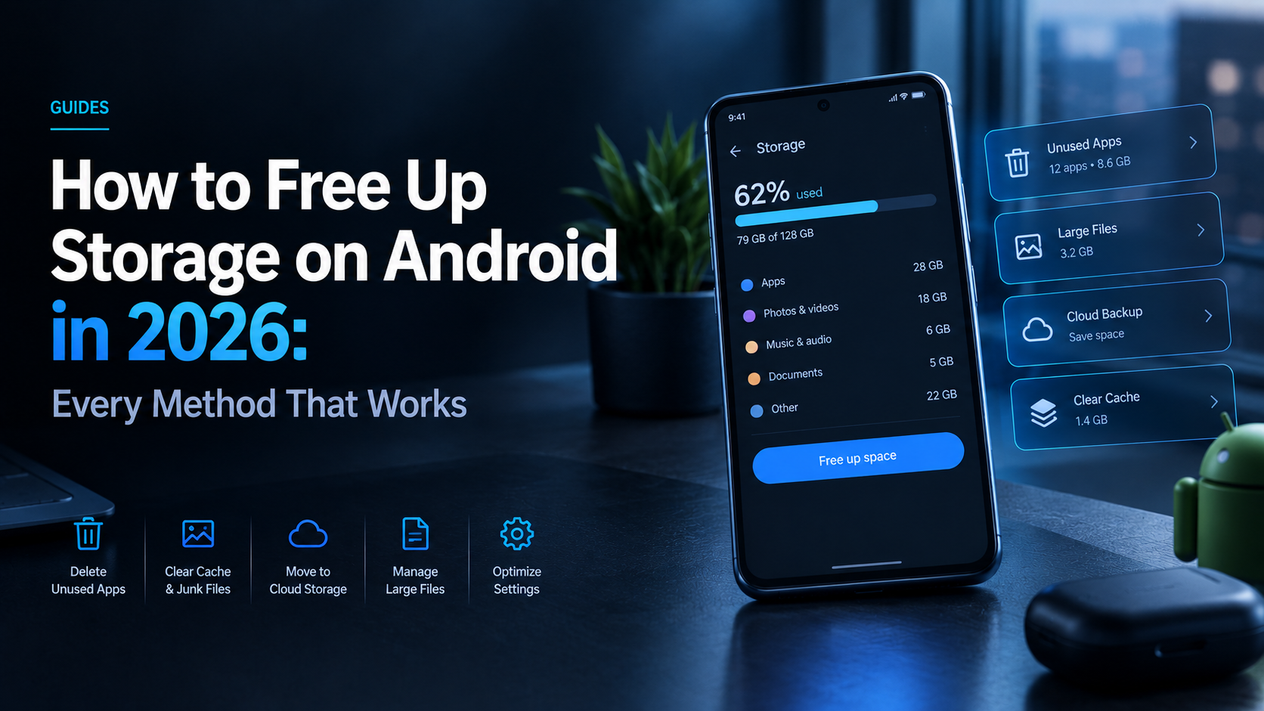
Before deleting anything, find out what is actually taking up space. On most Android phones: go to Settings → Storage. You will see a breakdown by category — Images, Videos, Apps, Audio, Documents, and Other. On Samsung, go to Settings → Battery and Device Care → Storage. On Pixel, go to Settings → Storage directly.
In almost every case, Images and Videos sit at the top. That tells you the fastest win is in your gallery, not your apps. Start there.
Step 2: Delete Screenshots, Duplicates, and Large Videos
Screenshots are the easiest gigabytes you will ever recover. Open Google Photos or your Gallery app, find the Screenshots album, select all, and delete. Most people have hundreds of screenshots they will never look at again.
Videos are the biggest individual files on most phones. A one-minute 4K video takes around 400MB. Sort your gallery by file size, identify the largest videos you no longer need, and delete them first. WhatsApp video downloads alone can fill gigabytes unnoticed — go to WhatsApp → Settings → Storage and Data → Manage Storage to see and delete media by conversation.
Critical: deleted photos and videos sit in your Trash or Recently Deleted folder for 30 days and still take up space during that time. Empty the trash after deleting. Google Photos: Library → Trash → Empty trash. Samsung Gallery: menu → Trash → Empty. Files by Google: Trash → select all → Delete. If you deleted files and your storage number didn’t move, this is why.
Step 3: Clear App Cache
App cache is temporary data stored by apps to speed up loading times. It builds up silently and can consume 2–5GB on a typical phone. Clearing it is completely safe — it does not delete your accounts, settings, or app data. The app simply rebuilds its cache the next time you use it.
To clear cache for individual apps: Settings → Apps → tap the app → Storage → Clear Cache. Focus on the heaviest apps first: Chrome or your browser, Google Maps, Spotify, Netflix, Instagram, TikTok, and YouTube. These routinely accumulate the largest caches. On Samsung you can clear all app cache at once: Settings → Battery and Device Care → Storage → Clean Now.
Step 4: Clear the Downloads Folder
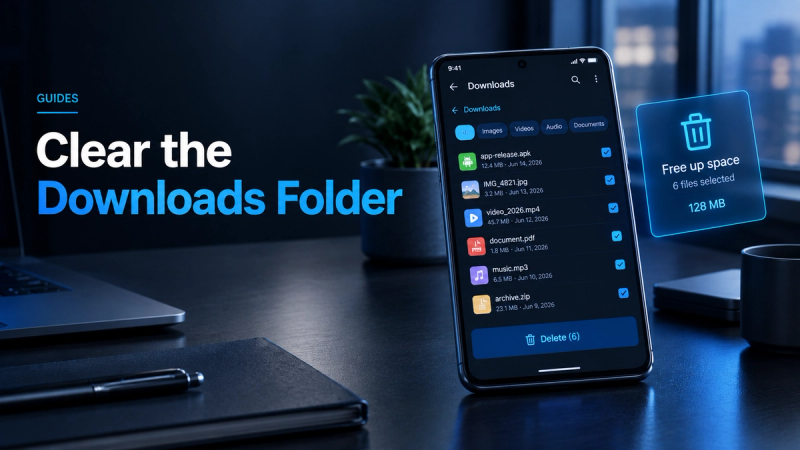
The Downloads folder accumulates PDFs, APKs, attachments, and files you downloaded once and forgot about. Open Files by Google (pre-installed on most Android phones, or download from the Play Store) → Browse → Downloads. Sort by size and delete everything you no longer need. On Samsung, use My Files → Downloads. A typical Downloads folder has 500MB–1GB of recoverable space.
Step 5: Use Files by Google to Find Junk Automatically
Files by Google has a built-in Clean tab that automatically identifies junk files, duplicate files, large files, and apps you haven’t used in a while. Open the app → tap Clean at the bottom. It will show you exactly how much space each category is taking and let you delete with one tap. This is the fastest way to find hidden storage waste you wouldn’t notice manually.
Step 6: Back Up Photos to the Cloud and Remove Them from Your Device
Google Photos backs up your photos and videos to the cloud and lets you free up the local copies with one tap. Open Google Photos → Library → Utilities → Free Up Space. It will show you how much space backed-up photos are taking on your device and delete the local copies, keeping the cloud versions safe. Google gives you 15GB free, shared across Gmail, Drive, and Photos — enough for thousands of photos.
If you use OneDrive, it offers the same camera backup feature. Our OneDrive vs Google Drive comparison covers which service makes more sense depending on your setup.
Step 7: Uninstall Apps You Don’t Use
Apps you never open still take up storage. Go to Settings → Apps and sort by size. Any app over 500MB that you haven’t used in months is a candidate to uninstall. Games are the worst offenders — a single mobile game can take 2–3GB. Reinstalling later takes minutes; the storage is yours immediately.
Google Play also shows you unused apps: open the Play Store → Profile → Manage apps and device → Manage → filter by “Not used in over a year.” Uninstall anything on that list you don’t recognise.
Step 8: Delete Offline Downloads from Streaming Apps
Spotify, Netflix, YouTube Premium, and Pocket Casts all let you download content for offline listening and watching. These downloads accumulate quietly. In Spotify: Settings → Storage → Delete cache. In Netflix: Downloads → select and delete titles. In YouTube: Library → Downloads → remove videos. A few downloaded albums and films can easily account for 3–5GB of storage.
Long-Term Fixes: Stop Storage Filling Up Again
- Turn on Google Photos automatic backup. Every photo and video backs up automatically. Use Free Up Space monthly to clear local copies.
- Turn off WhatsApp auto-download. WhatsApp → Settings → Storage and Data → set When Using Mobile Data and When Connected on Wi-Fi to No Media. WhatsApp media is the single biggest silent storage drain on most phones.
- Keep at least 10–15% of storage free. Android needs free space for system updates, app updates, and temporary files. If storage drops below 10%, you will notice slowdowns and update failures.
- Clear app cache every 2–4 weeks. Set a monthly reminder. Takes 2 minutes and reliably recovers 1–2GB.
How Much Space Can You Recover? A Quick Reference
| Method | Typical space recovered | Time to complete |
|---|---|---|
| Delete screenshots | 500MB–2GB | 2 minutes |
| Empty trash/recycle bin | 1–5GB (if you recently deleted) | 1 minute |
| Clear app cache | 2–5GB | 5 minutes |
| Clear Downloads folder | 500MB–1GB | 3 minutes |
| Delete WhatsApp media | 1–3GB | 5 minutes |
| Google Photos Free Up Space | 2–10GB+ | 2 minutes |
| Uninstall unused games/apps | 1–5GB per app | 5 minutes |
| Delete offline streaming downloads | 1–5GB | 3 minutes |
The Verdict
Most Android phones have 5–15GB of recoverable space sitting in cache, trash, screenshots, and downloads. Start with clearing your gallery trash and app cache — those two steps alone usually recover enough space to stop the Storage Full notification immediately. Set up Google Photos automatic backup and turn off WhatsApp auto-download to stop the problem recurring.
If you’re consistently running out of space despite cleaning up regularly, cloud storage is the long-term solution. See our guide to the best cloud storage services compared to find the right plan for your storage needs. For more tips on keeping your phone running well, see our guide on how to speed up a slow Android phone.