How to Clear Cache on Android in 2026: Every Method That Works
How to clear cache on Android in 2026 — step-by-step for Samsung, Pixel, and stock Android, plus browser cache and when to clear data vs cache.
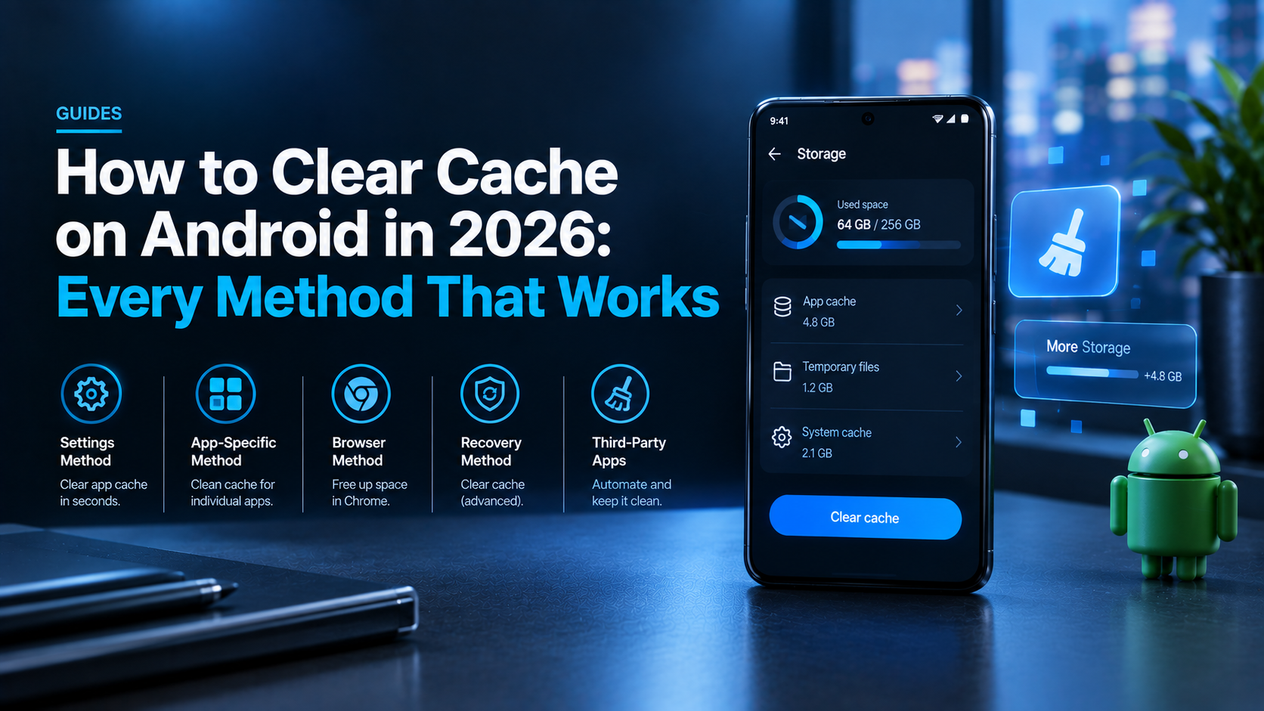
Clearing the cache on your Android phone takes under two minutes and can recover gigabytes of storage, fix app crashes, and speed up a sluggish device. The steps differ slightly between Samsung, Pixel, and other Android phones — and the single bulk “Clear all cache” button that existed in older Android versions is gone in Android 13 and above. This guide covers every method that actually works in 2026.
What Is Cache and Why Clear It?
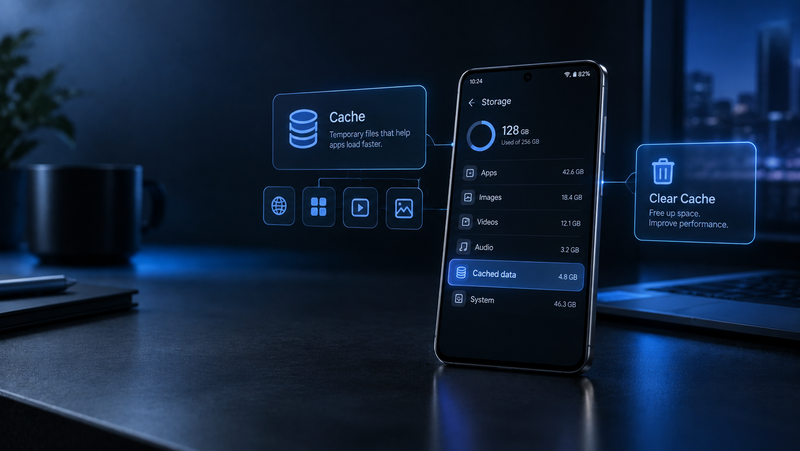
Cache is temporary data your apps store to load faster next time. Instagram saves images so your feed loads without re-downloading them. Chrome saves page resources so sites open quicker on repeat visits. Over time this data accumulates, becomes outdated, and can cause apps to slow down, crash, or display stale content. Clearing it is safe — it does not delete your accounts, settings, photos, or personal data. The app simply rebuilds a fresh cache the next time you open it.
| Action | What it deletes | Risk |
|---|---|---|
| Clear Cache | Temporary files only | None — safe to do any time |
| Clear Data (Storage) | Cache + all app data, settings, logins | High — resets app to fresh install |
Always tap Clear Cache, not Clear Data (or Clear Storage). Clear Data removes your logins and app settings. They sit next to each other in the same menu — read before tapping.
How to Clear Cache on Android (Stock / Pixel)
How to Clear Cache on Android (Stock / Pixel)
- Go to Settings → Apps
- Tap See all apps
- Tap the app you want to clear
- Tap Storage & cache
- Tap Clear cache
On Pixel phones running Android 16, the path is the same. There is no single button to clear all app caches at once in stock Android 13 or above — you need to do it per app.
How to Clear Cache on Samsung Galaxy (One UI)
Samsung’s One UI has a faster bulk cache-clearing option that stock Android removed:
Bulk clear (fastest method):
- Settings → Battery and Device Care → Storage → Clean Now
- This clears cache for all apps at once and takes about 10 seconds
Single app clear:
- Settings → Apps → tap the app → Storage → Clear Cache
How to Clear Browser Cache on Android
Clear Cache in Chrome
- Open Chrome → tap the three-dot menu → History → Clear browsing data
- Select Cached images and files (uncheck Browsing history and Cookies if you want to keep those)
- Tap Clear data
Clear Cache in Firefox
- Open Firefox → three-dot menu → Settings → Delete browsing data → check Cached images and pages → Delete browsing data
How to Clear Cache on Android Using Files by Google
Files by Google has a built-in Clean tab that identifies junk files and large cache across all apps in one place — the closest thing to a bulk cache cleaner available on stock Android in 2026.
- Open Files by Google → tap Clean at the bottom
- Tap the Junk files card → Confirm and clean
- Also check the Large files and Unused apps cards while you’re there
When to Clear Cache vs When to Clear Data
| Problem | Fix |
|---|---|
| App is slow or taking long to load | Clear Cache |
| App shows old/wrong content | Clear Cache |
| Running low on storage | Clear Cache on heavy apps (Instagram, Chrome, Spotify) |
| App keeps crashing after cache clear | Clear Data (you will be logged out) |
| App is completely broken | Uninstall and reinstall |
How Often Should You Clear Cache on Android?
Every 2–4 weeks for the heaviest cache-building apps: Chrome, Instagram, TikTok, Spotify, Google Maps, YouTube, and WhatsApp. These consistently accumulate the largest caches. On Samsung, the Battery and Device Care → Storage → Clean Now button makes this a 10-second monthly habit. On stock Android, use Files by Google’s Junk files cleaner for bulk clearing.
The Verdict
On Samsung: Settings → Battery and Device Care → Storage → Clean Now is the fastest way to clear all app cache at once. On Pixel and stock Android: use Files by Google’s Clean tab for the closest bulk alternative, or clear per-app via Settings → Apps. Always tap Clear Cache, not Clear Data, unless you specifically need to reset the app entirely.
Clearing cache is one part of keeping your Android running well. For the full picture, see our guides on how to free up storage on Android, how to block ads on Android, and how to speed up a slow phone.