How to Block Ads on Android in 2026: Every Method That Works
How to block ads on Android in 2026 — Private DNS, Brave, Firefox + uBlock Origin, and how to stop home screen and YouTube ads without rooting.
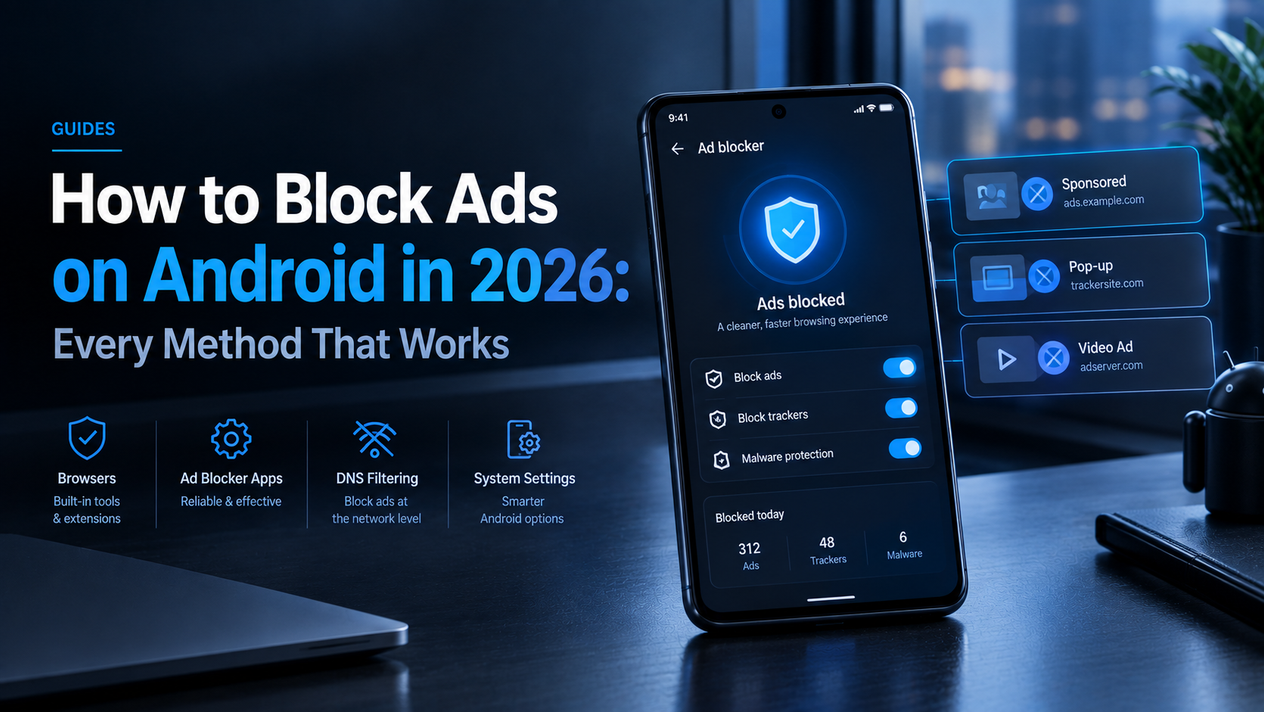
Blocking ads on Android in 2026 is easier than most people think — and more worth doing. Every ad that loads on your phone uses data, drains battery, and slows page loads. Ad networks also run background trackers that profile your behaviour across sites. The right combination of a Private DNS setting and a privacy-focused browser cuts 80–90% of ads across your entire device in under ten minutes, without rooting your phone, installing suspicious apps, or paying anything.
This guide covers every method that works in 2026, ordered from most effective to most targeted.
How to Block Ads on Android: Methods Compared
| Method | What it blocks | Difficulty | Cost |
|---|---|---|---|
| Private DNS (AdGuard/NextDNS) | Ads + trackers system-wide (all apps) | Easy | Free |
| Brave Browser | Ads + trackers in browser | Easy | Free |
| Firefox + uBlock Origin | Ads + trackers in browser (most thorough) | Easy | Free |
| AdGuard app (sideloaded) | Ads + trackers system-wide including apps | Moderate | Free (basic) |
| VPN with ad blocking (NordVPN/Surfshark) | Ads + trackers + IP protection | Easy | Paid |
| Chrome Site Settings | Intrusive ads only (pop-ups, overlays) | Easy | Free |
Method 1: Private DNS — The Best Free System-Wide Solution
Private DNS is the most underrated method for blocking ads on Android in 2026. It works at the network level — blocking ad domains before they even reach your device — which means it applies to every browser and every app at once, with no installation required. It works on any Android phone running Android 9 or above without rooting.
How to Set Up Private DNS on Android
- Go to Settings → Network & Internet → Private DNS
- Select Private DNS provider hostname
- Enter dns.adguard.com (for AdGuard DNS) or nextdns.io (for NextDNS)
- Tap Save
On Samsung, the path is Settings → Connections → More Connection Settings → Private DNS. On Pixel, it’s Settings → Network & Internet → Private DNS. The setting varies slightly by manufacturer but is available on every modern Android phone.
Limitation: Private DNS blocks ad domains but cannot block inline ads embedded within the content itself. It also cannot block YouTube ads since those are served from the same domain as the video content. For YouTube, see Method 3.
Method 2: Brave Browser — Best One-Tap Browser Ad Blocking
Brave is a free browser with ad and tracker blocking enabled by default — no extensions, no configuration, no setup beyond downloading it from the Play Store. It blocks ads, cross-site trackers, fingerprinting scripts, and bounce tracking. Pages load faster and use less data than in Chrome because the ad content is stripped before it renders.
Brave’s Shields feature can be adjusted per site — if a site you want to support asks you to disable your ad blocker, you can whitelist just that domain in one tap without affecting blocking everywhere else.
Method 3: Firefox + uBlock Origin — Most Thorough Browser Blocking
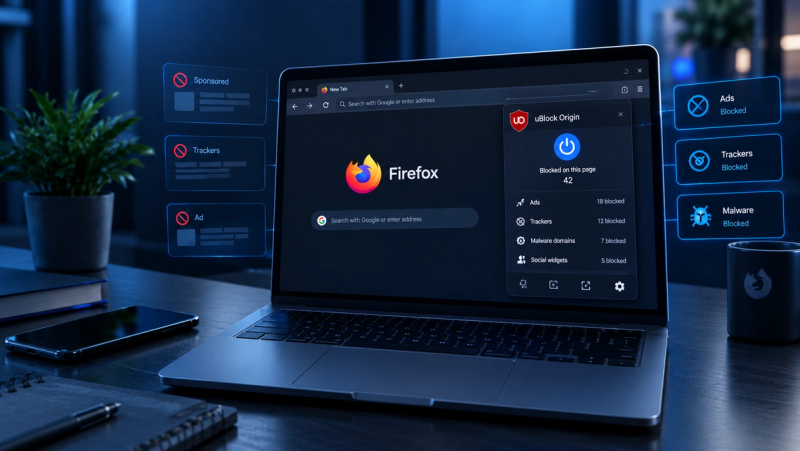
Firefox for Android is the only major mobile browser that supports full extensions. This means you can install uBlock Origin — the most effective ad and tracker blocker available — directly in the browser, exactly as you would on a desktop. uBlock Origin uses content filtering rather than just DNS blocking, which means it catches inline ads and tracking scripts that DNS-level blockers miss.
How to Install uBlock Origin on Firefox for Android
- Download Firefox from the Google Play Store
- Open Firefox → tap the three-dot menu → Add-ons
- Search for uBlock Origin and tap Add
- Blocking is active immediately — no additional configuration needed
The combination of Private DNS (Method 1) and Firefox + uBlock Origin gives you two layers of blocking — DNS-level system-wide coverage and content-level browser coverage. This two-layer approach catches ads that either method would miss alone and is the most thorough free solution available on Android in 2026.
Method 4: Stop Ads Appearing on Your Home Screen
If you are seeing ads appearing directly on your home screen or floating over other apps, a specific app has been granted the “Display over other apps” permission and is abusing it for advertising. This is common with free games, flashlight apps, and some utility apps.
How to Find and Stop Home Screen Ads
- Go to Settings → Apps
- Tap the three-dot menu → Special app access → Display over other apps
- Review the list — any app you don’t recognise or rarely use should have this permission revoked
- Tap the app → toggle off Allow display over other apps
Method 5: Block Ad Notifications
Some apps push promotional notifications that look like system alerts. To stop them: Settings → Notifications → App notifications. Review each app and turn off notifications for any you don’t need alerts from. On Android 13 and above, apps must ask permission before sending notifications — always deny notification access to apps that don’t genuinely need it.
How to Block YouTube Ads on Android
YouTube ads cannot be blocked by Private DNS because they are served from the same domain as the video content. The options in 2026 are: YouTube Premium ($15.99/month) removes all ads. Firefox + uBlock Origin blocks YouTube ads in-browser effectively. The YouTube ReVanced app (sideloaded APK) removes ads from the YouTube app itself — but requires downloading outside the Play Store and carries some risk if you download from an unverified source. If you use YouTube heavily and want the most reliable ad-free experience, YouTube Premium is the cleanest solution.
How to Block Pop-Up Ads in Chrome on Android
Chrome does not support full ad-blocking extensions on mobile. However, Chrome’s built-in site settings block the most intrusive ad formats: Settings → Site Settings → Intrusive ads — toggle on. This removes pop-ups and overlay ads on sites Google has flagged for abusive advertising. It does not block all ads, but it removes the worst offenders. For full ad blocking in a browser, switch to Brave or Firefox.
The Verdict: Best Way to Block Ads on Android in 2026
The most effective free setup is Private DNS (dns.adguard.com) for system-wide app and browser coverage, combined with Firefox + uBlock Origin for thorough in-browser blocking. Set up both and you will eliminate the vast majority of ads across your Android device without spending anything or rooting your phone.
If you want complete coverage including YouTube and VPN privacy together, NordVPN’s Threat Protection or Surfshark’s CleanWeb bundles ad blocking with encryption. Our guides to whether NordVPN and Surfshark are worth it cover their full pricing and feature sets.
Blocking ads also helps keep your phone running faster and using less storage. For more Android performance tips, see our guide on how to free up storage on Android and how to speed up a slow phone.