Opera Password Manager: How It Works, Opera GX, and Whether to Use It
Opera's password manager is built-in, free, and works the same in Opera GX. Here is how it works, how to set it up, and whether to use it or switch to Bitwarden.
Opera Password Manager: What It Does and Whether to Use It
- Opera's password manager is built into the browser and free — it saves, syncs, and autofills passwords across Windows, Mac, iOS, and Android
- Opera GX uses the same password manager as regular Opera; the feature is identical across both browsers
- Passwords sync via your Opera account and are encrypted on your device before being sent to Opera's servers
- Opera's business model includes a VPN, ad blocker, and free tier with no paywalled password features — unusual among browsers
- The main limitation is the same as Edge and Safari: it only autofills inside Opera and does not work in Chrome, Firefox, or native apps
- Opera is owned by a consortium of Chinese investors since 2016 — worth knowing for users with strict data privacy requirements
- If you use multiple browsers or need cross-platform autofill beyond Opera, Bitwarden is the free upgrade path
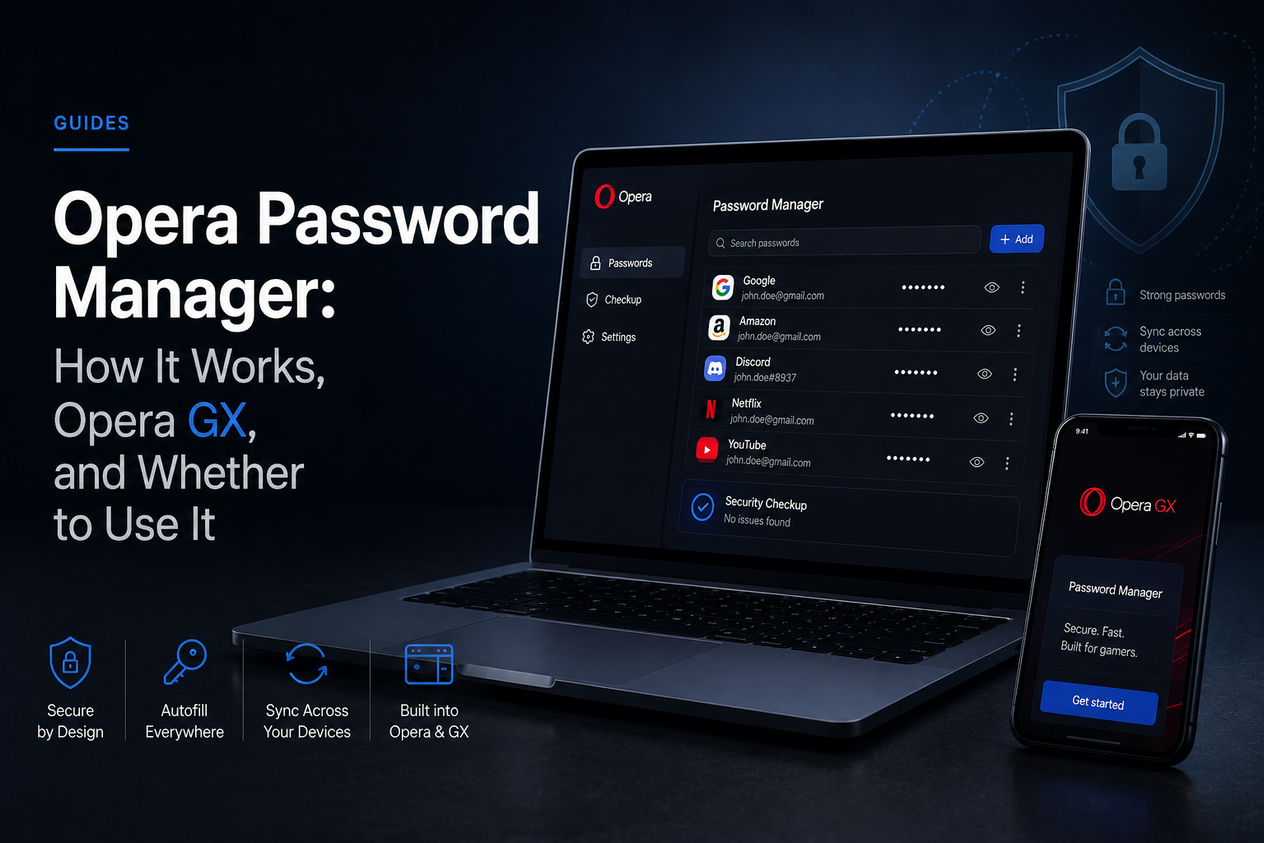
Opera's password manager is built into the browser and has been since 2015. It saves passwords as you log in, fills them back automatically, suggests strong passwords when you create accounts, and syncs across every device where you are signed into Opera. It works on Windows, Mac, iOS, and Android, and the feature set is identical whether you are using Opera or Opera GX.
There is no premium tier. The password manager, the built-in VPN, and the ad blocker are all free. That is a different proposition from most browsers, where the password management tool is basic and the interesting features cost extra.
The one thing to know before committing to it is that it works only inside Opera — the same constraint that applies to Microsoft Edge's password manager and Safari. If you ever open another browser, your passwords will not follow you there.
What Opera Password Manager Does
| Feature | How it works |
|---|---|
| Password saving | Opera prompts you to save credentials when you log into a site; saved passwords are encrypted on your device |
| Autofill | Fills usernames and passwords automatically on return visits inside Opera or Opera GX |
| Password generator | Suggests a strong random password when you create or update an account |
| Breach alerts | Opera checks saved passwords against known data breach databases and notifies you if one has been exposed |
| Cross-device sync | Passwords sync across all devices signed into your Opera account on Windows, Mac, iOS, and Android |
| Import and export | Import from Chrome, Firefox, Edge, or CSV; export to CSV for migration to another manager |
| Works in Opera GX | Opera GX uses identical password management infrastructure — same account, same vault, same features |
How to Set Up Opera Password Manager
It is on by default in Opera, but these steps confirm it is running correctly and syncing across your devices.
Step 1: Confirm saving is enabled
- Go to opera://settings/passwords in the address bar, or open Settings → Advanced → Autofill and passwords
- Confirm “Offer to save passwords” is toggled on
- Click Saved passwords to view your vault
Step 2: Sign in to enable sync
- Click the profile icon in the top left of the browser or go to opera://settings/syncSetup
- Sign into your Opera account (or create one)
- In Sync settings, confirm Passwords is toggled on
Step 3: Set a master password (optional but recommended)
Opera lets you set an additional master password that locks the vault separately from your OS login. Go to opera://settings/passwords and look for “Encrypt passwords with a passphrase”. This prevents anyone with access to your computer from viewing saved passwords without that extra passphrase.
💡 A short Monday brief on the tech that actually matters. Daybreak is free. Subscribe to Daybreak for free →
Opera Password Manager vs Google Password Manager vs Bitwarden
The honest comparison is between three tiers: a browser-locked manager (Opera), a more portable browser manager (Google), and a fully independent manager (Bitwarden). All three are free.
| Opera | Google Password Manager | Bitwarden (free) | |
|---|---|---|---|
| Cost | Free | Free | Free |
| Works in other browsers | No — Opera only | Chrome-first, extension available elsewhere | Yes — all browsers, all platforms |
| Native app autofill (iOS/Android) | Opera app only | Android system-wide; iOS via Chrome app | Yes — system-wide on both platforms |
| Zero-knowledge encryption | No — Opera handles sync | No — Google handles sync | Yes |
| Master password option | Yes — optional passphrase | No | Yes |
| TOTP / 2FA codes | No | No | Yes (free) |
| Secure sharing | No | No | Yes (limited, free) |
| Independent security audit | No published audit | No published audit | Yes (annual, public) |
Opera's optional master password sets it apart from Google and Edge, which offer no equivalent. That is a genuine security advantage for a browser-locked manager. Everything else in the feature list is matched or exceeded by Bitwarden, which is also free.
If you are already evaluating which password manager to trust your accounts to, the broader question of what a password manager actually does is worth reading before settling on any browser-based option.
The Opera Ownership Question
Opera was acquired in 2016 by a consortium of Chinese investors including Kunlun Tech and Qihoo 360. The browser is now headquartered in Norway but majority-owned by Chinese entities. This has raised concerns in the privacy community about data handling, particularly because Chinese companies can be subject to Chinese government data requests.
Opera's published privacy policy states that passwords are encrypted on your device before being sent to their servers, and that Opera does not sell personal data. Neither claim has been independently verified through a public audit.
For most everyday users saving website login credentials, this is a low practical risk. For anyone with elevated privacy requirements — journalists, researchers, business users handling sensitive data — a zero-knowledge manager with a published audit history is a more defensible choice.
- Free and built-in — no installation or account needed beyond Opera itself
- Optional master password (passphrase) adds a layer not available in Edge or Google's manager
- Works identically in Opera GX — same account, same vault
- Breach monitoring alerts you when a saved password appears in a known data breach
- Import from Chrome, Firefox, Edge, or CSV makes migration easy
- Cross-device sync across Windows, Mac, iOS, and Android at no cost
- Works only inside Opera — no autofill in Chrome, Firefox, Edge, or native apps
- Not zero-knowledge — Opera handles the sync infrastructure with no published independent audit
- No TOTP or 2FA code storage — requires a separate authenticator app
- No secure password sharing
- Owned by a Chinese-majority consortium since 2016 — relevant for privacy-conscious users
- No published third-party security audit
Opera GX Password Manager: Is It Different?
No. Opera GX is a skinned version of Opera aimed at gamers, with features like RAM and CPU limiters, a Twitch integration, and game news feeds. The underlying browser engine and all browser features — including the password manager — are identical to regular Opera.
If you use Opera GX, your passwords are stored in the same vault and sync via the same Opera account. You can switch between Opera and Opera GX on different devices and access the same saved passwords on both.
Should You Use Opera's Password Manager?
| Your situation | Recommendation |
|---|---|
| Opera is your only browser and will stay that way | Use it — it is free, capable, and has the optional master password other browsers skip |
| You use Chrome or Firefox alongside Opera | Switch to Bitwarden — Opera's passwords will not autofill in other browsers |
| You play on Opera GX only | Use it — same manager, same vault, no setup difference |
| You want TOTP codes in the same app as passwords | Bitwarden free — Opera has no TOTP support |
| You have elevated privacy or security requirements | Bitwarden or Proton Pass — both are zero-knowledge with published audits |
| You are switching from another browser to Opera | Import via Settings → Autofill and passwords → Import passwords — covers Chrome, Firefox, Edge, CSV |
Whatever you use, the single biggest thing you can do for account security is enabling two-factor authentication on your most important accounts. A password manager protects your passwords — 2FA protects you even if a password is compromised.
Frequently Asked Questions
Does Opera have a built-in password manager?
Yes. Opera's password manager is built in and free. It saves passwords as you log into sites, fills them automatically on return visits, generates strong passwords, and syncs across all your devices via your Opera account.
Where are Opera passwords stored?
Passwords are encrypted on your device and then synced to Opera's servers if you are signed into an Opera account. Locally, they are stored in an encrypted file in Opera's profile directory. You can view them at opera://settings/passwords.
Does Opera GX have its own separate password manager?
No. Opera GX uses the same password manager as regular Opera. If you sign into the same Opera account on both, your passwords are shared across both browsers automatically.
Is Opera password manager safe?
Opera encrypts passwords on your device before syncing. The optional master passphrase adds protection if someone accesses your computer. The main concern is that Opera has never published a third-party security audit and is majority-owned by a Chinese-majority consortium, which some users consider a risk worth factoring in.
Can Opera's password manager autofill in other browsers?
No. Opera's password manager works only within Opera and Opera GX. If you use Chrome, Firefox, or Edge as well, you will need to enter passwords manually in those browsers or switch to a cross-browser manager like Bitwarden.
How do I export passwords from Opera?
Go to opera://settings/passwords, click the three-dot menu next to Saved passwords, and select Export passwords. Opera downloads a CSV file containing all saved credentials in plain text. Import this into your destination password manager and delete the CSV immediately after.
Opera Password Manager: Quick Reference
| Question | Answer |
|---|---|
| Cost | Free |
| Works in other browsers | No — Opera and Opera GX only |
| Cross-device sync | Yes — Windows, Mac, iOS, Android via Opera account |
| Master password option | Yes — optional passphrase in settings |
| Breach alerts | Yes |
| TOTP storage | No |
| Zero-knowledge encryption | No |
| Published security audit | No |
| Works in Opera GX | Yes — identical feature set |
| Export to CSV | Yes |