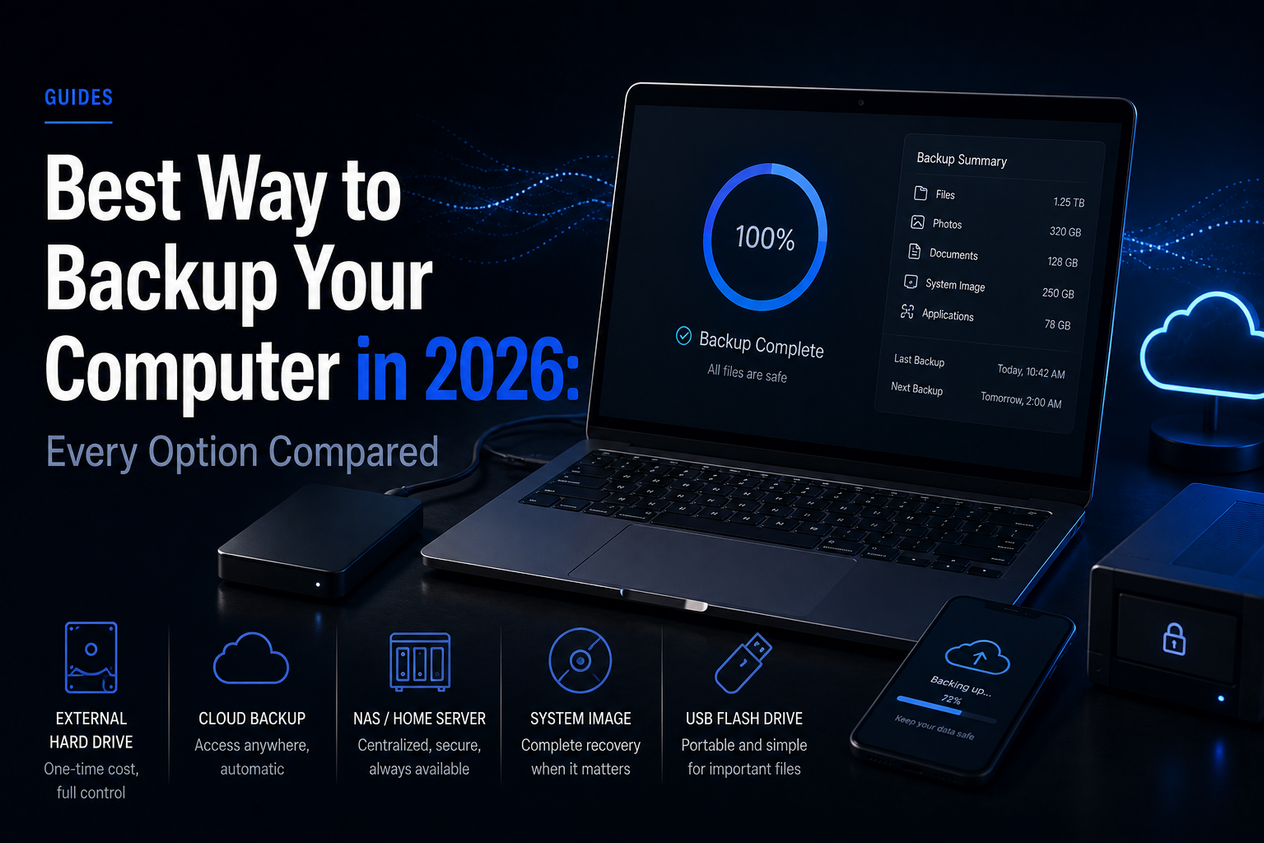
Best Way to Backup Your Computer in 2026: Every Option Compared
The best ways to backup your computer in 2026 — external drives, cloud backup, and built-in tools compared so you never lose files again.
Most people don't think about backing up their computer until they've already lost something. A failed hard drive, a ransomware attack, an accidental deletion — any of these can wipe years of files in seconds. The good news is that backing up your computer in 2026 is cheaper, faster, and more automated than ever. The bad news is that most people are still doing it wrong — or not at all.
This guide covers the best backup methods in 2026, how much each costs, and which combination makes the most sense for your situation.
The 3-2-1 Backup Rule: Start Here
Before choosing tools, understand the principle every IT professional uses: the 3-2-1 rule. Keep 3 copies of your data. Store them on 2 different types of media. Keep 1 copy offsite. In practice: your original files on your computer, a local backup on an external drive, and a cloud backup stored remotely. If your house burns down, the local backup burns with it. If your cloud provider goes down, your local backup still works. The 3-2-1 rule protects against every realistic data loss scenario.
Best Ways to Backup Your Computer in 2026
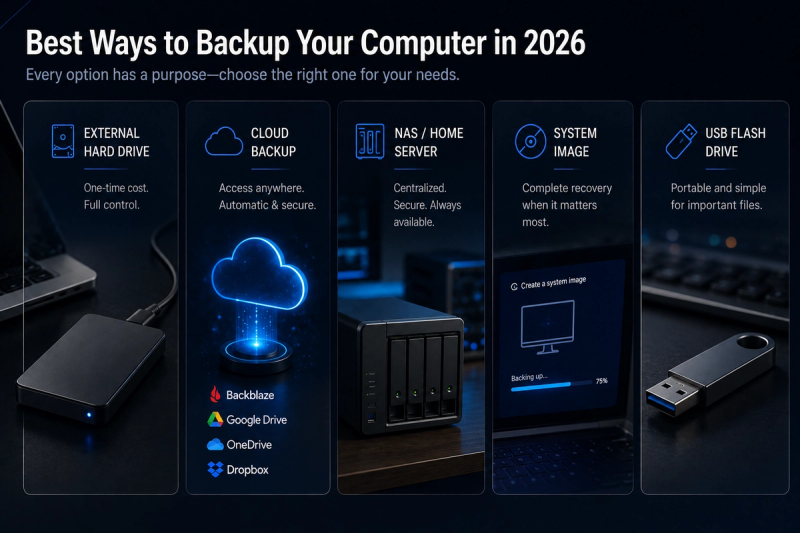
| Method | Cost | Best for | Protects against |
|---|---|---|---|
| External SSD/HDD | $60–$120 one-time | Fast local restore | Drive failure, accidental deletion |
| Cloud backup (Backblaze) | $99/year | Automatic offsite backup | Theft, fire, flood, ransomware |
| Cloud storage (OneDrive/Google Drive) | Free–$9.99/month | File sync + light backup | Accidental deletion, device loss |
| Windows File History / Mac Time Machine | Free (needs external drive) | Versioned file recovery | Accidental changes, file corruption |
| NAS (Network Attached Storage) | $200–$500+ | Home network backup | Single drive failure |
| Hybrid (local + cloud) | ~$170/year total | Complete protection | Everything |
1. External Drive — Fast Local Backup
An external SSD or hard drive is the foundation of any backup strategy. Prices have dropped significantly — a 1TB external SSD runs $60–$80 in 2026, and a 2TB external HDD costs around $60. Connect it, run a backup, and you have a full copy of your files that restores in hours rather than days. SSDs are faster and more durable for portable use. HDDs offer more storage per dollar if the drive stays at home.
Limitation: An external drive sitting next to your computer gets destroyed in the same fire or flood. It doesn't protect against ransomware if it's connected when the attack happens. Always pair it with a cloud backup.
2. Cloud Backup — Best Offsite Protection
Cloud backup services automatically back up your entire computer to remote servers. Unlike cloud storage which syncs selected folders, cloud backup runs in the background and copies everything — documents, photos, videos, system files. The three worth considering in 2026:
| Service | Price | Storage | Standout feature |
|---|---|---|---|
| Backblaze | $99/year | Unlimited | Best value, continuous backup, 1-year version history |
| IDrive | $79.50/year (first year) | 10TB | Backs up multiple devices, NAS support |
| Acronis Cyber Protect | $59.99/year | 500GB | Ransomware protection built-in, disk cloning |
Backblaze at $99 per year is the simplest recommendation for most people. Unlimited storage, continuous backup, and 1-year file version history means you can recover files deleted or changed up to a year ago. It runs silently in the background and requires almost no configuration after setup.
Limitation: Cloud backup is slow to restore. Downloading 500GB on a typical home connection takes 1–3 days. Always keep a local backup for fast restores — use cloud backup as your offsite disaster recovery.
3. Built-In Tools — Windows File History and Mac Time Machine
Windows File History
Windows File History automatically saves copies of your files every hour to an external drive. To set it up: Settings → Update & Security → Backup → Add a drive. If you accidentally delete or overwrite a file, you can browse previous versions and restore exactly what you need.
Mac Time Machine
Time Machine creates hourly snapshots for the past 24 hours, daily backups for the past month, and weekly backups beyond that. Connect an external drive and macOS prompts you to use it. Once set up it runs automatically forever — the most hands-off local backup available.
4. Cloud Storage — Not a Backup, But Still Useful
OneDrive, Google Drive, and Dropbox are cloud storage services, not cloud backup. Cloud storage syncs files you choose — if you delete a file and it syncs before you notice, it's gone from the cloud too. That said, cloud storage adds a useful extra layer for your most important files. Our full OneDrive vs Google Drive comparison covers which service makes more sense for your setup.
Best Backup Setup for Most People in 2026
- Local backup: 1TB external SSD (~$70) running Windows File History or Mac Time Machine. Fast restore for everyday accidents.
- Cloud backup: Backblaze at $99/year. Automatic, unlimited, runs in the background. Offsite protection against fire, theft, and ransomware.
- Total cost: ~$170 first year, $99/year after. Complete protection for everything on your computer.
Common Backup Mistakes to Avoid
- Only backing up to one place — a single backup is one failure away from total loss. Follow the 3-2-1 rule.
- Confusing cloud storage with cloud backup — syncing to Google Drive is not a backup if deletions sync across.
- Never testing the restore — a backup you've never restored from might not work when you need it. Test once a year.
- Leaving the external drive plugged in permanently — ransomware encrypts connected drives too. Disconnect after backups or use cloud backup as your primary protection.
The Verdict
The best way to backup your computer in 2026 is the combination of a local external drive and Backblaze cloud backup. The external drive gives you fast restores for everyday accidents. Backblaze gives you offsite protection for disasters. Together they cover everything the 3-2-1 rule requires at around $170 for the first year.
If budget is a constraint, start with an external drive and Windows File History or Mac Time Machine — free after the drive purchase and meaningfully better than nothing. For more on cloud storage options that complement your backup, see our guide to the best cloud storage services compared.