Firefox Password Manager: Is It Good Enough in 2026?
Firefox Password Manager reviewed — how it works, whether it’s secure, its limitations, and when to use a dedicated manager instead.
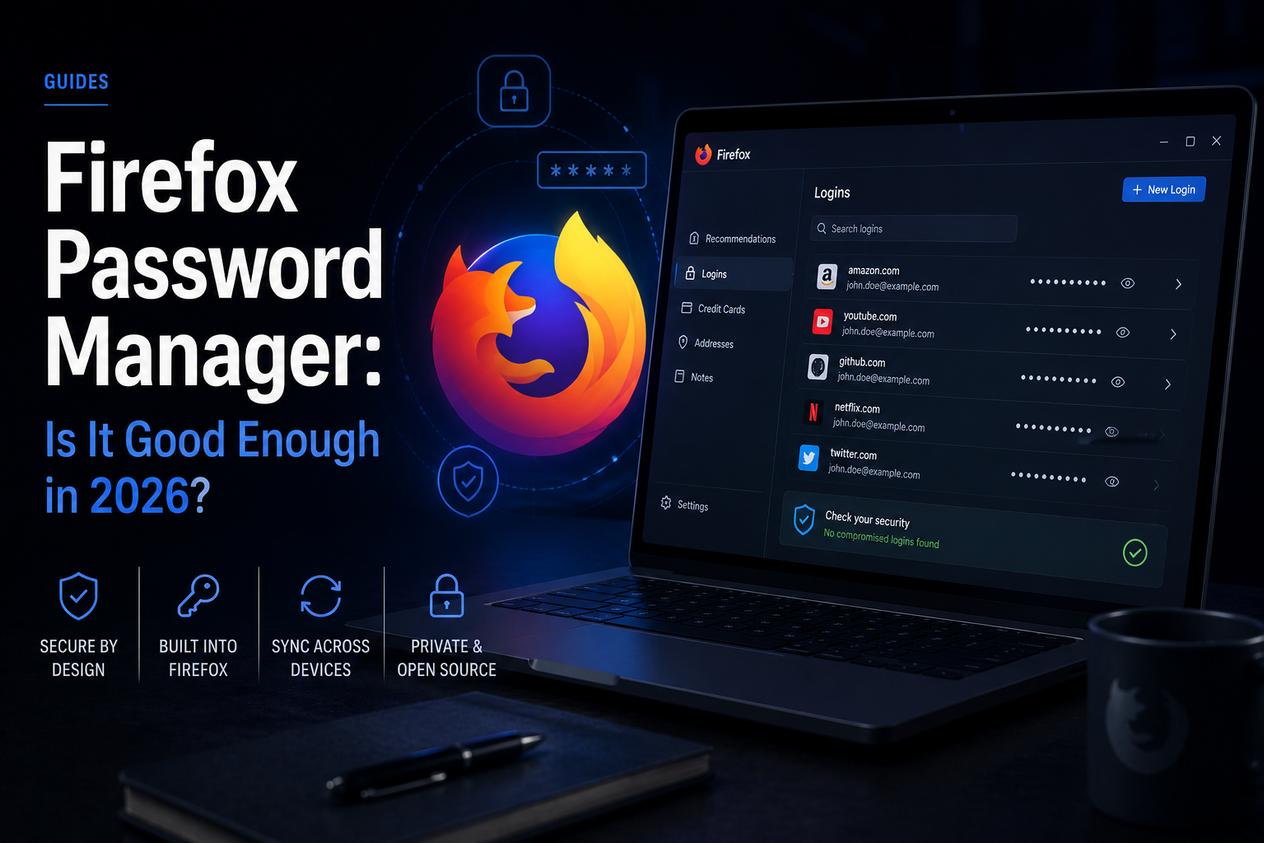
Firefox has a built-in password manager. It's free, it's already there when you open the browser, and for a lot of people it's the first password manager they ever use without realising it. The question worth asking in 2026 is whether it's actually good enough — or whether you should move to something better.
The short answer: Firefox's built-in password manager is a solid starting point that does the basics well, but it has real limitations compared to dedicated password managers. Whether those limitations matter depends entirely on how you use it.
What Is the Firefox Password Manager?
Firefox Password Manager is Mozilla's built-in tool for saving, storing, and auto-filling login credentials. When you type a username and password into a website and hit sign in, Firefox asks if you want to save it. If you say yes, Firefox stores that credential and fills it in automatically next time you visit that site.
It also generates passwords when you create a new account — Firefox will offer a random strong password rather than letting you reuse an old one — and syncs your saved passwords across devices through a Firefox account. The sync works across any device running Firefox, including Windows, Mac, Linux, Android, and iOS.
Firefox Password Manager: What It Does
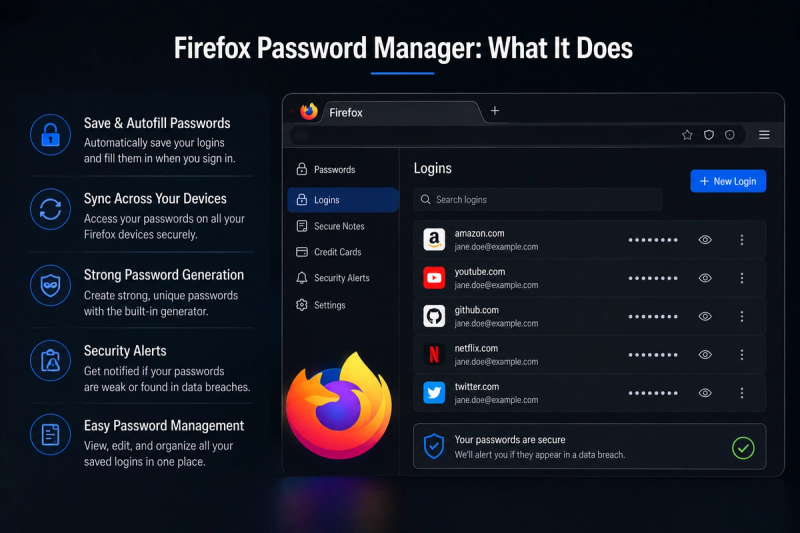
| Feature | Firefox Password Manager |
|---|---|
| Price | Free |
| Password saving | ✅ Yes |
| Auto-fill | ✅ Yes (inconsistent on some sites) |
| Password generator | ✅ Yes (basic) |
| Sync across devices | ✅ Yes (requires Firefox account) |
| Primary password (master password) | ✅ Yes (optional, zero-knowledge) |
| Breach alerts | ✅ Yes (via Firefox Monitor) |
| Password sharing | ❌ No |
| Password health audit | ❌ No |
| Passkey support | ❌ No |
| Works in other browsers | ❌ No — Firefox only |
| Secure notes | ❌ No |
| Two-factor authentication | ❌ Not built-in (Firefox account supports 2FA) |
How to Use Firefox Password Manager
Finding Your Saved Passwords
Open Firefox and click the menu icon (three horizontal lines, top right). Go to Passwords. This opens the built-in password vault where you can see, search, edit, or delete any saved credential. On mobile, go to Settings → Logins and Passwords.
Setting a Primary Password
By default, anyone who opens your Firefox browser can see your saved passwords. To lock them behind a master password, go to Settings → Privacy & Security → scroll to Logins and Passwords → tick Use a Primary Password. This creates a zero-knowledge encryption layer — Mozilla cannot access your passwords even if they wanted to. You’ll be prompted for this password when Firefox starts or when you try to view saved credentials.
This is the single most important thing to set up if you use Firefox Password Manager. Without it, your passwords are stored unencrypted on your device, accessible to anyone who opens your browser.
Syncing Across Devices
Sign into a Firefox account (free at mozilla.org) and turn on Sync in Settings → Firefox Account → Sync. Make sure Logins and Passwords is ticked. Your credentials will sync encrypted across every device where you’re signed into Firefox.
Is Firefox Password Manager Secure?
With a primary password enabled, yes — Firefox Password Manager is reasonably secure. Mozilla uses zero-knowledge encryption for sync, meaning your passwords are encrypted on your device before they leave it, and Mozilla cannot decrypt them. The primary password itself is never sent to Mozilla’s servers.
Without a primary password, it’s less secure than it looks. Saved passwords are stored locally in a format that can be read by anyone with access to your Firefox profile folder. On a shared computer, this is a real risk. On a personal device that’s never shared, it’s lower risk but still worth setting up.
Firefox Monitor integration alerts you if any of your saved email addresses appear in known data breaches — a useful feature for catching compromised accounts early.
Firefox Password Manager Limitations
Firefox only. Your passwords live in Firefox and nowhere else. If you use Chrome on your work computer, Safari on your iPhone, or Edge on a shared device, those credentials aren’t available. Dedicated password managers like Bitwarden or 1Password work across every browser and every platform.
No password health audit. Firefox can’t tell you which of your passwords are weak, reused, or old. It won’t flag that you’ve used the same password on 14 sites. Dedicated managers run ongoing audits and surface this information clearly.
No password sharing. You can’t securely share a login with a family member or colleague through Firefox Password Manager. Dedicated managers have encrypted sharing built in.
Inconsistent auto-fill. Reviewers consistently note that Firefox’s auto-fill doesn’t work reliably on all sites, particularly those with non-standard login flows. Dedicated managers handle these better.
No passkey support. Passkeys are the successor to passwords — cryptographic credentials that can’t be phished. Firefox is adding passkey support at the browser level, but the password manager itself doesn’t store or manage passkeys the way dedicated managers like 1Password and Dashlane do.
Firefox Password Manager vs Dedicated Password Managers
| Firefox Password Manager | Dedicated manager (e.g. Bitwarden) | |
|---|---|---|
| Price | Free | Free (Bitwarden) or $3–10/month |
| Works in all browsers | ❌ Firefox only | ✅ Yes |
| Password audit | ❌ No | ✅ Yes |
| Password sharing | ❌ No | ✅ Yes |
| Passkey support | ❌ Limited | ✅ Yes (leading managers) |
| Secure notes | ❌ No | ✅ Yes |
| Breach alerts | ✅ Via Firefox Monitor | ✅ Built-in |
| Zero-knowledge encryption | ✅ With primary password | ✅ Always |
Who Should Use Firefox Password Manager?
Firefox Password Manager is the right choice if you use Firefox as your only browser, you don’t need to share passwords with anyone, you’re not ready to pay for a dedicated manager, and you’re willing to set up a primary password and Firefox account to make it secure.
It’s a poor choice if you use multiple browsers or devices with different browsers, you want password health auditing, you need to share credentials with family or colleagues, or you want passkey support.
The Best Password Managers for Firefox in 2026
If Firefox’s built-in manager isn’t enough, all of the following work as Firefox extensions and are significantly more capable:
Bitwarden
Open source, free tier covers most users, works across all browsers and platforms. Password auditing, sharing, secure notes, and passkey support all included. The free version is more capable than Firefox’s built-in manager in almost every category.
1Password
Consistently rated the best full-featured password manager for Firefox. $2.99/month. Excellent Firefox extension, Travel Mode for crossing borders, Watchtower breach and password health alerts. Worth it for anyone who takes security seriously.
NordPass
Clean interface, XChaCha20 encryption (more modern than AES-256), free tier available. Works well in Firefox and pairs with NordVPN if you already use Nord’s products.
RoboForm
Best value paid option at $0.99/month. Strong form-filling, AES-256 encryption, and a well-rated Firefox extension. Good choice for users who want more than the free tier offers but don’t want to spend much.
The Verdict
Firefox Password Manager is genuinely useful for Firefox-only users who want a free, browser-integrated solution. Set up a primary password and a Firefox account, and it’s a secure, zero-knowledge vault that handles the basics well. If you’re currently saving passwords with no manager at all, switching to Firefox’s built-in tool is a meaningful security improvement.
The ceiling is low compared to dedicated managers. No cross-browser support, no password auditing, no sharing, no passkeys. If any of those features matter to you, Bitwarden’s free tier does everything Firefox’s manager does — and significantly more. For a broader look at what password managers can do, see our guide to what a password manager is, or compare options in our guides to the Microsoft password manager and Samsung password manager.